How to create animated flat lays in 5 steps
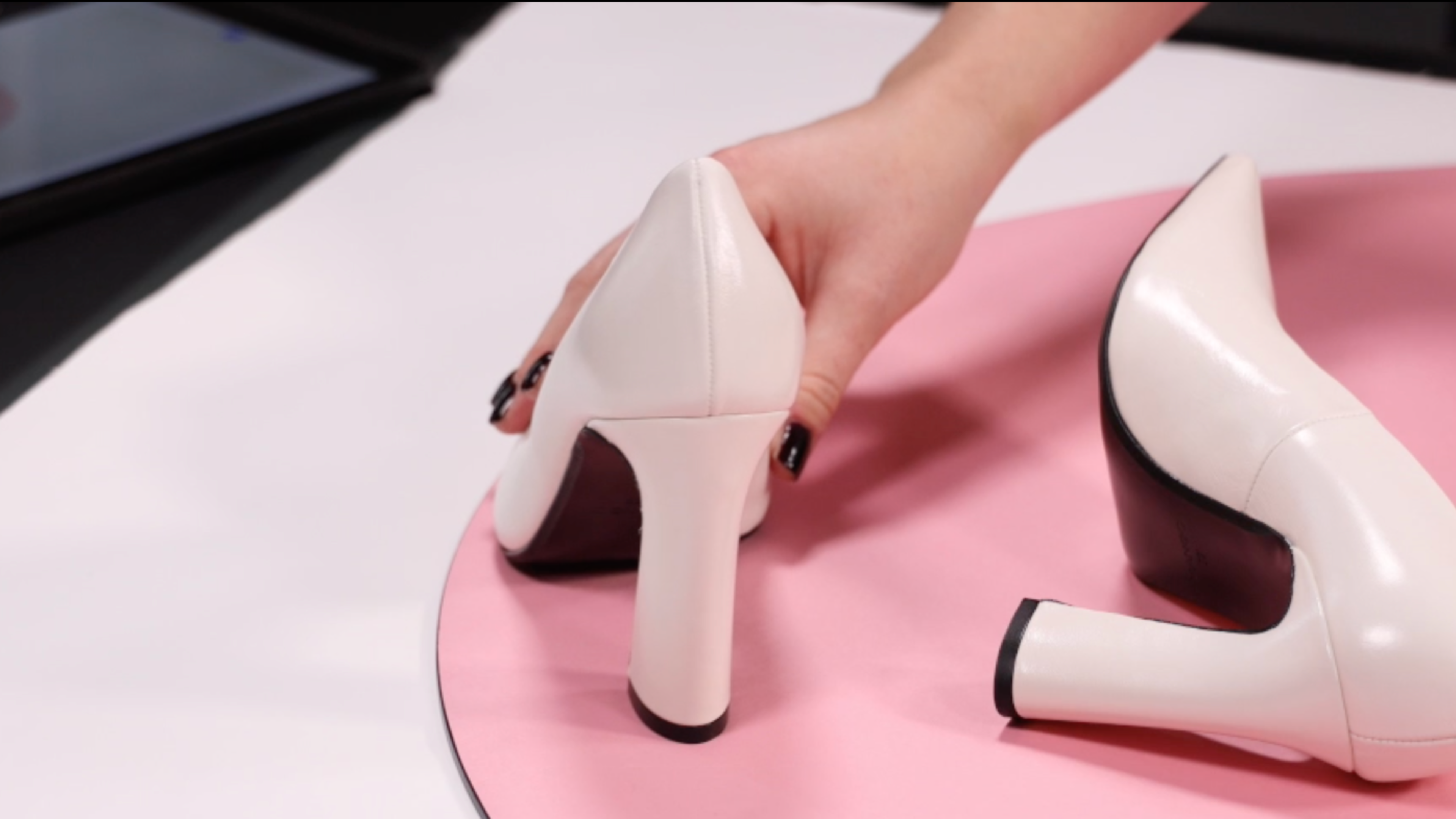
Learn how to create fun and interesting flat lays that inspire your audience without using a model.
In this tutorial, our expert Annabelle Plueckthun shows you how to create animated flat lays with the help of Photoshop. Flat lays are a great format to tell a story with your products - without the use of a model. Animating your image brings your flat lay to life which makes it even more appealing for your audience.
You’ll learn how to style and capture images of your product(s) and animate them using Photoshop later on. We chose a pair of timeless off-white pumps that we animated in Photoshop to make it appear as if someone was walking in them.
In this tutorial we cover the following:
- Thinking of your storyline
- Arranging your flat lay to tell a story with your products
- Experimenting with what works for you and your flat lay
- Animating your flat lay with Photoshop
- Saving your flat lay in the right format
You’ll need:
- Products of choice, e.g. a pair of shoes
- A well-lit set and camera:
- Traditional photo studio set-up: lights, diffusers, cameras, etc.,
- DIY home set-up: High-quality DSLR camera and a spot with lots of natural light, or
- Our Profoto StyleShoots Horizontal
- Photoshop
- Props or backdrops (optional)
Step 1: Think of your storyline
Flat lays give you the opportunity to tell a story with your product(s). They are an excellent way to create fun and creative content for your social channels or campaign imagery such as tiles or banners for your website or included as a GIF in your email send-outs.
What do you want to bring across with your image? When it comes to arranging your flat lay, it’s important to think about the storyline first. Think about which products you want to show in your flat lay and make sure the story you’re trying to tell is consistent. We decided to animate a pair of shoes to make it appear as if someone was walking in them.
Can you think of a color scheme that fits your story? Stick with a color scheme for your image to make it appealing to your audience. Choose colors from the same or complementing color families or go with your brand color(s) for your image. We chose to combine our off-white pumps with a light pink backdrop to add some color.
Where do you want to use your flat lay? Lastly, think about where you want to use your visuals. Using content for a website banner compared to an Instagram post will require different measurements. Keep the use of the image in mind when creating and styling it to avoid any complications later on. We want to create an animation for our Instagram channel, so we’ll arrange it accordingly.
Step 2: Arrange your flat lay
Keep your image format in mind when arranging your items. Make sure to arrange the key items so that they’ll be visible in the format you need. Styling an image for a 4:1 website banner will differ from styling a 9:16 Insta Story. We will stick with a squared, 1:1 format for our flat lay to post it in our Instagram feed.
Horizontal is great for all kinds of image formats. You can use the Live View on the included iPad of the machine to check what your image looks like whilst styling it. The grid function enables you to optimally arrange all your items according to your needs.
Depending on what you show in your image, it might be fun to keep some of your products, your props, or your backdrop slightly outside of the frame or center of your flat lay. This signals the viewer that there’s even more to your image and creates an interesting effect.
Whilst arranging the products, you can get really creative. Flat lays are supposed to be fun, so things don’t have to line up perfectly. You can play around with props or leave room for some text that you’ll add with Photoshop in post-production. If you’d like to animate single items in your flat lay, make sure that they don’t overlap.
Step 3: Find out what works for you
Arranging your flat lay is all about experimentation. Find out what works for you, what looks good together, and what doesn’t. There is no “one size fits all” for styling your image.
Add or leave out some props, exchange backdrops, or move your items around. You can also play with slightly elevating some of your items to create more depth in your flat lay by using transparent cubes or tissue paper. When doing so, make sure not to cast any shadows on items you’d like to animate later.
Also, experiment with your lighting. Our all-in-one solutions come with built-in daylight calibrated LED lights to ensure that your products are evenly lit. You can control the lights via the included iPad to give your image a personal touch.
If you don’t work with Profoto equipment, indirect sunlight works best. When shooting images you’d like to use as a GIF, don’t change your lighting in between shots to create consistency and no unwanted shadows.
Step 4: Animate your flat lay with Photoshop
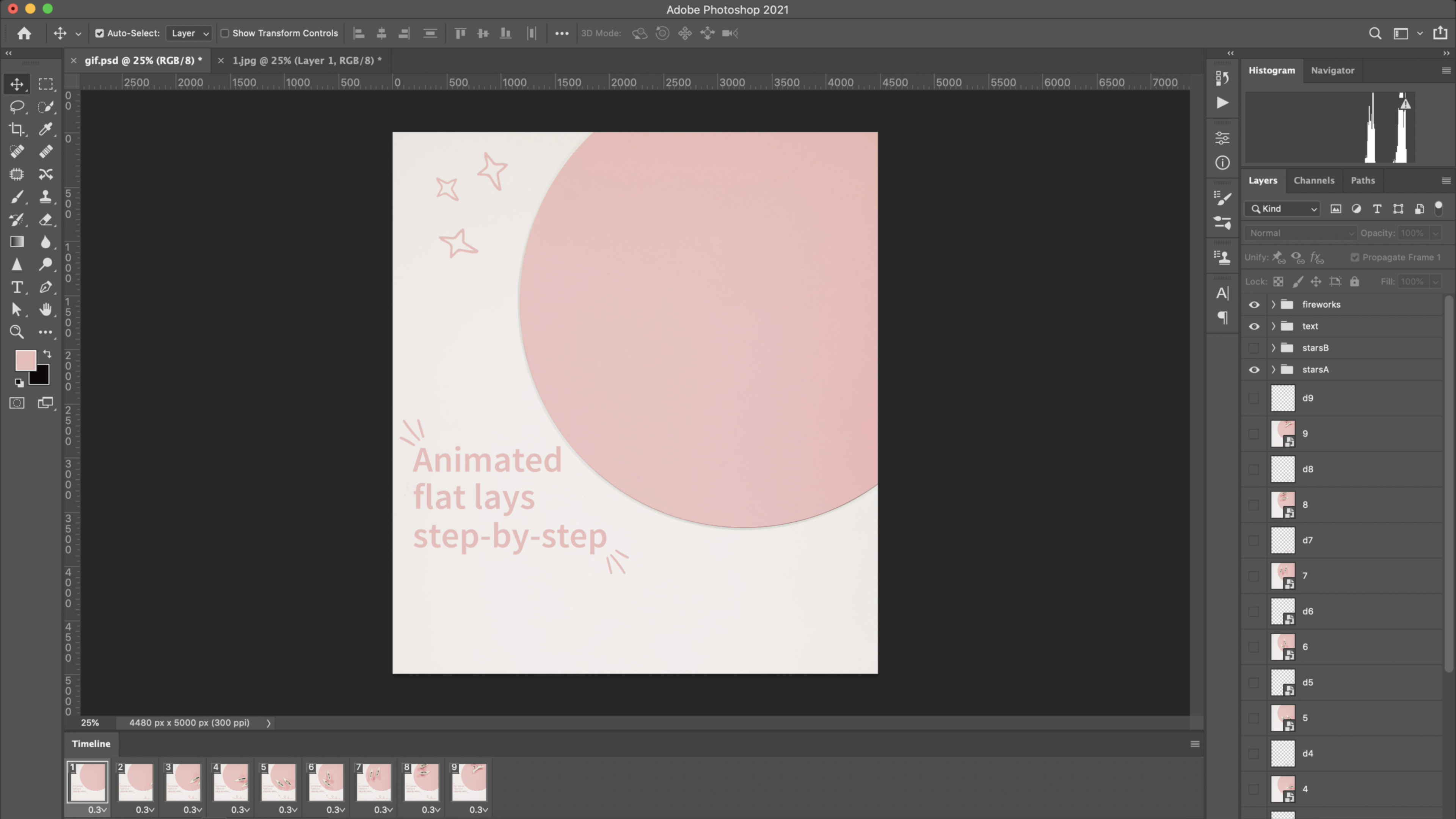
To animate our flat lay, we use the latest version of Adobe Photoshop 2021. Start with opening the program and importing all the images you’d like to use for your animation.
Depending on what you’d like to show or communicate with your flat lay you can add some drawings or text on the separate layers by using the “Brush” tool. Next, open the timeline and convert all of your layers into animation frames.
You can also animate the different items in your flat lay by cutting them out and adding them at a slightly different angle as a new layer. One perk of the Horizontal is the automatic background removal so that you don’t have to manually cut the items out. Also, you can choose whichever background you like to go with your flat lay in post-production.
Once you’re happy with the animation, combine your images with the added text and the variations of your drawings into one Photoshop document. Next, set your frame delay and the animation to loop. Finally, export the animation in the appropriate format depending on what you’d like to use it for. In our case, for an Instagram feed post, MP4 is the way to go. Choose GIF for your website or when using the animation in an email.
Step 5: Save and upload your flat lay
After exporting your animation, the final step is to save and upload it. Choose the optimal quality and file size depending on where and how you’d like to use your animated flat lay.
Here are a few suggestions to keep in mind depending on your social media platform of choice.
For your Facebook feed, the recommended dimensions are 1280 x 720 in landscape and portrait mode. Stick to MP4 or MOV.
On Instagram, the same file formats, MP4 and MOV, are required. 1:1 is still key, so go for 1080 x 1080.
LinkedIn requires MP4 video files. The recommended dimensions are 1200 x 628.